
Select an existing key
Open Devices → Add device / Edit → Authentication → SSH key. The public identity picker lists keys found on the MCP host, with algorithm, fingerprint and companion private-key path. Refresh the list after creating/importing a key outside MCP. Selecting a key saves its path in the device draft; it does not import the public key into RouterOS.
Create a key
- Choose Create key and enter a unique name (letters/digits,
_and-, up to 64 characters; start with a letter/digit). - Choose Generate & select key. MCP creates an RSA-3072 pair in its host user's
.sshdirectory. Existing files are never overwritten; private-file permissions are owner-only. - Copy the generated public-key value into a
.pubfile. Import that public file in RouterOS under System → Users → SSH Keys, for the exact login user. - Return to the draft and Test connection. Save and keep the configuration after a successful read-only connection test.
The key is unencrypted for unattended service use. It remains on the MCP host if the editor is cancelled. Never import the private key into RouterOS or paste it into a public issue. Importing an SSH key can affect password SSH login for that RouterOS user; keep a verified recovery login during setup.
Other authentication paths
The editor also supports a private-key file path, inline PEM/OpenSSH key, optional passphrase and RouterOS password. A filesystem path belongs to the host/container running MCP, not the browser's machine. In Docker, mount the required key read-only and select the mounted path.
See connection configuration for precedence, REST and jump-host settings.
Additional screens
SSH identity picker
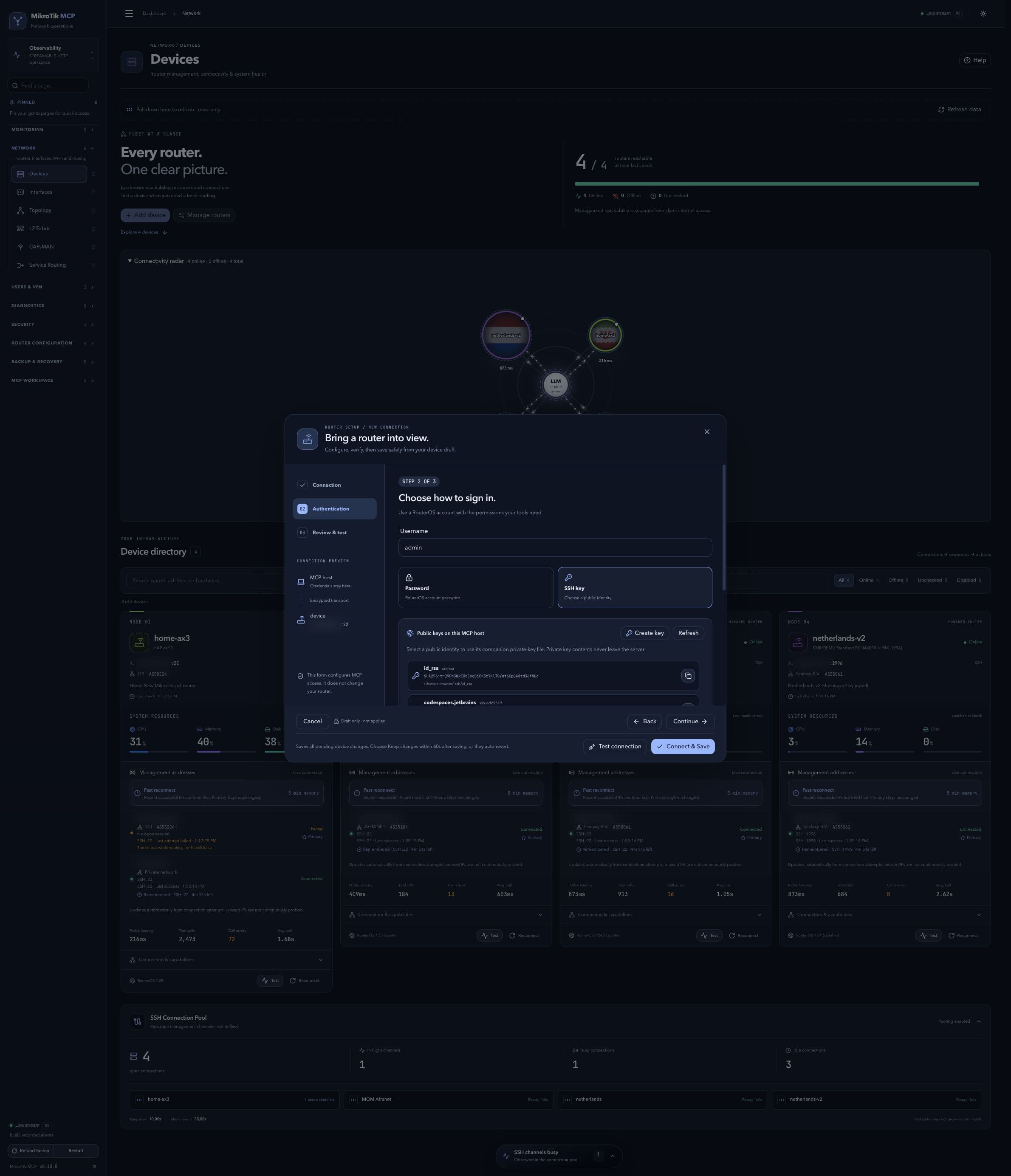 SSH identity picker; full-page capture with IPs and snapshot/backup names blurredFull page · Click to enlarge ↗
Key creation form
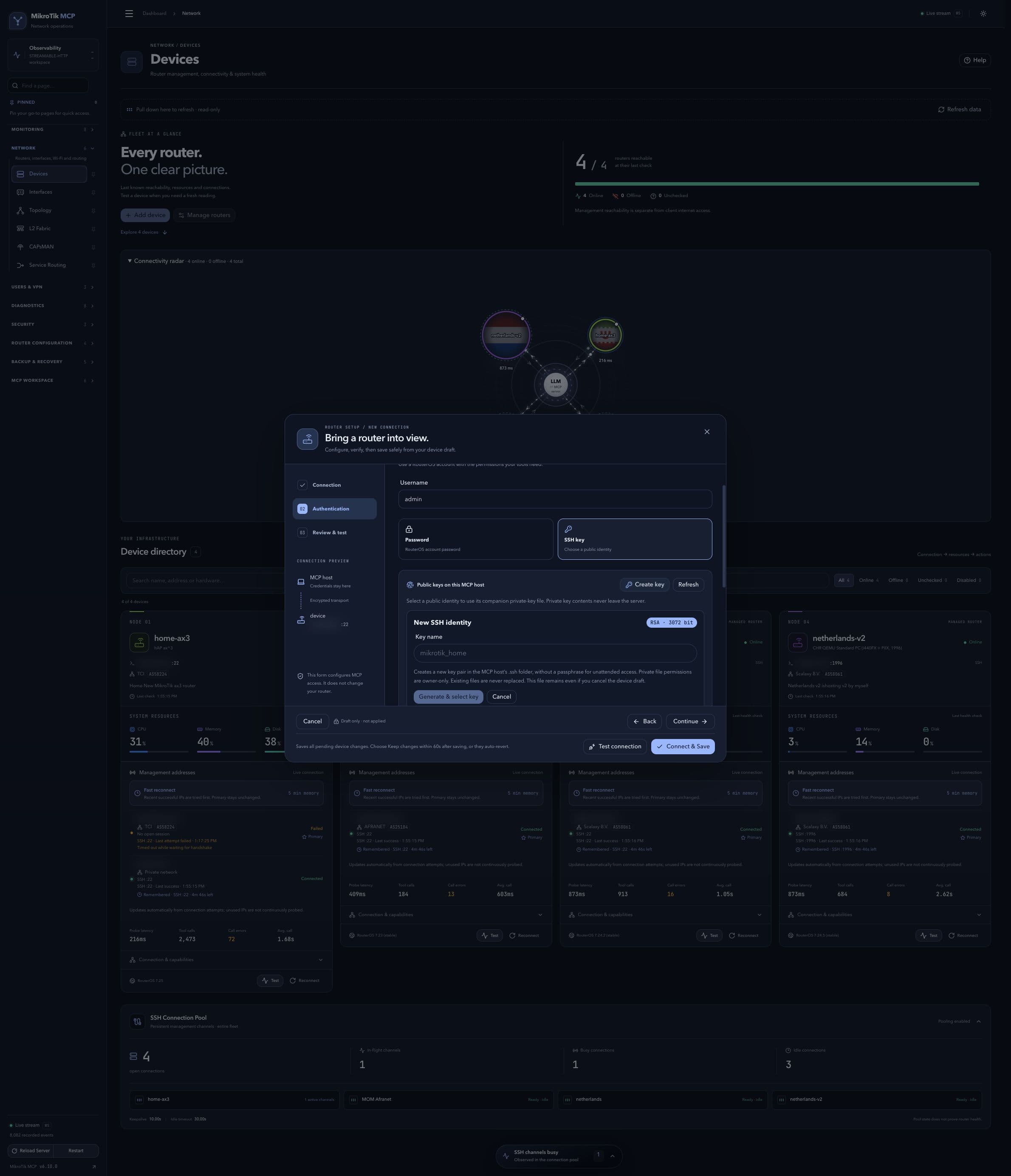 Key creation form; full-page capture with IPs and snapshot/backup names blurredFull page · Click to enlarge ↗