
Invite the affected device
Open Diagnostics → Client Check (#client-checks) and select the router that owns this investigation.
- Choose a reachable MCP host address, or enter its LAN, VPN or HTTPS proxy origin. A phone cannot use the host's
localhostaddress. - Enter an invitation label; optionally link an existing investigation.
- Create the invitation. Share its QR code or Copy link, or use Open test on the current device.
- The tester opens the link and explicitly starts a run. Each invitation lasts 15 minutes, permits six runs, and caps transfer data at 20 MiB per run.
The link grants test access, not dashboard access. Share it only with the intended tester. Use a trusted LAN/VPN or HTTPS: plain HTTP does not encrypt the test. If the MCP dashboard listens only on loopback, configure a reachable listener and restrict access with the host firewall before sharing.
What is measured
Measurements run from the affected browser to the MCP host: download/upload throughput, idle latency, latency under load, jitter and individual latency samples.
A server inside your LAN measures the path to that server, not necessarily your ISP or internet connection. This test does not verify DNS, path MTU or application availability. The reported address family is observed at the server; a reverse proxy changes that perspective.
Compare Wi-Fi and VPN
Run once on each connection, giving each run a useful label. Select two saved runs to compare their download and idle-latency changes and latency traces.
Only two complete runs to the same endpoint are comparable. A failed phase is unknown, not zero. These are sequential browser measurements; radio conditions and host load may change between runs.
Manage invitations and history
The connection panel shows invitation expiry, browser-reported device label, last presence and connection state. Presence refreshes separately from test results; a sleeping or backgrounded browser can appear disconnected.
Select an invitation to inspect its saved runs. Revoke invitation closes future access while retaining recorded measurements. The private invitation link is shown when created; selecting historical sessions does not recover it.
See client investigations and the Client Check tools.
Screen preview
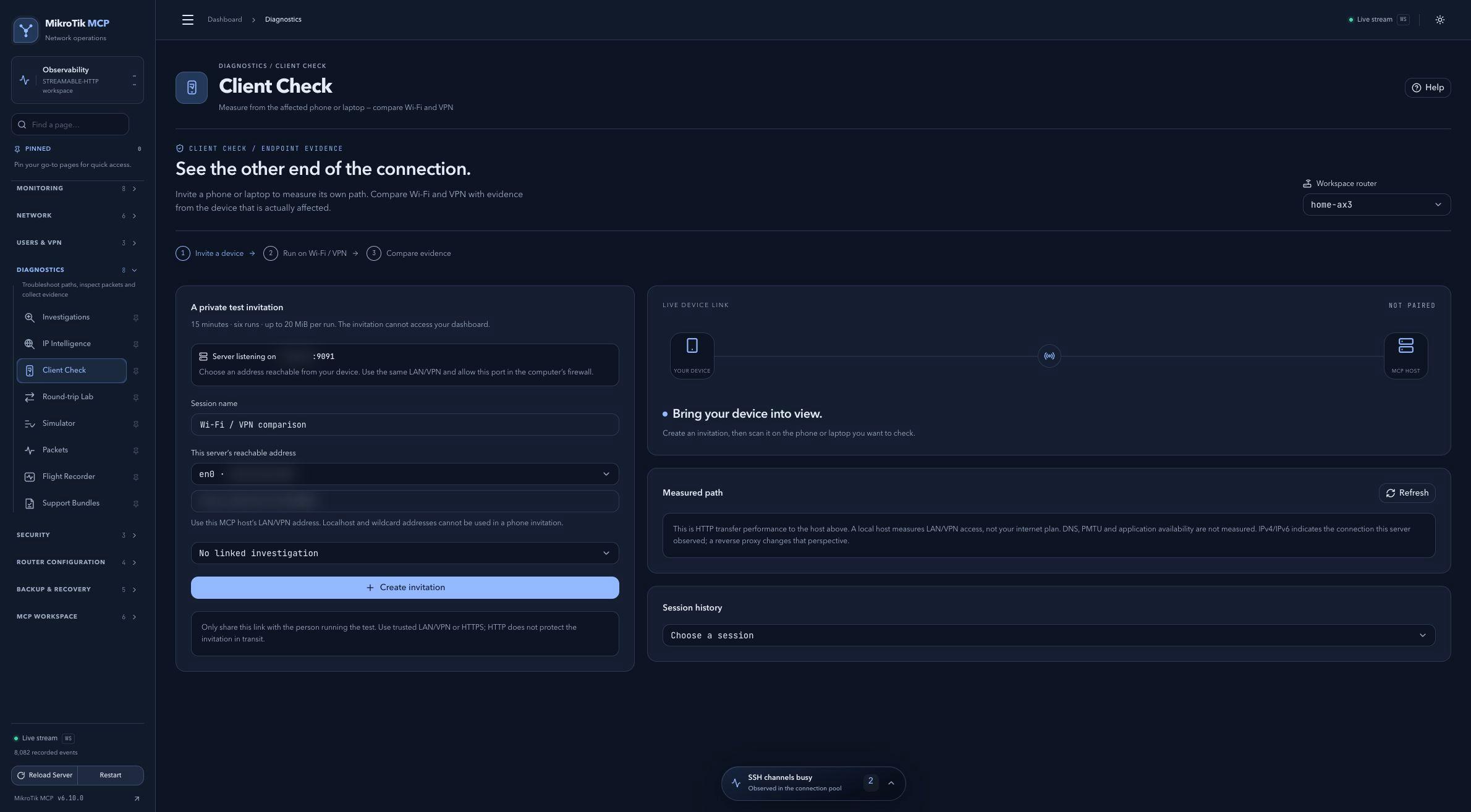 Full-page dashboard preview with IP addresses and snapshot/backup names blurredFull page · Click to enlarge ↗
IP addresses, snapshot/backup names and AAA/OpenVPN usernames are blurred in this full-page capture.