
Find a workflow
Open MCP workspace → Prompts (#prompts). Search workflow names, titles and descriptions, or filter by category. The library shows required and total input counts for each template.
Refresh library reloads the server catalog. If the list is unavailable, check the dashboard connection and that the installation includes its prompts directory.
Compose a request
- Select a workflow.
- Describe your desired result, symptoms and constraints in Your request.
- Optionally enter the exact configured device name in Target router.
- Fill the template's required fields, marked with an asterisk; add optional context where useful.
- Open Preview request, review the complete text, then Copy request.
If clipboard access is unavailable, select and copy the preview manually. An incomplete form shows the template preview, but Copy request stays disabled until required inputs are complete.
Paste the request into an assistant connected to this MikroTik MCP server. The ChatGPT/Claude links open those services; they do not send the composed text automatically.
Draft behavior
Preparing or copying a request executes no tools and changes no router. Inputs remain in the current page only; switching workflows or leaving clears the draft. A composed request is context for an assistant, not automatic permission for every possible change.
See available workflows and MCP prompt integration.
Screen preview
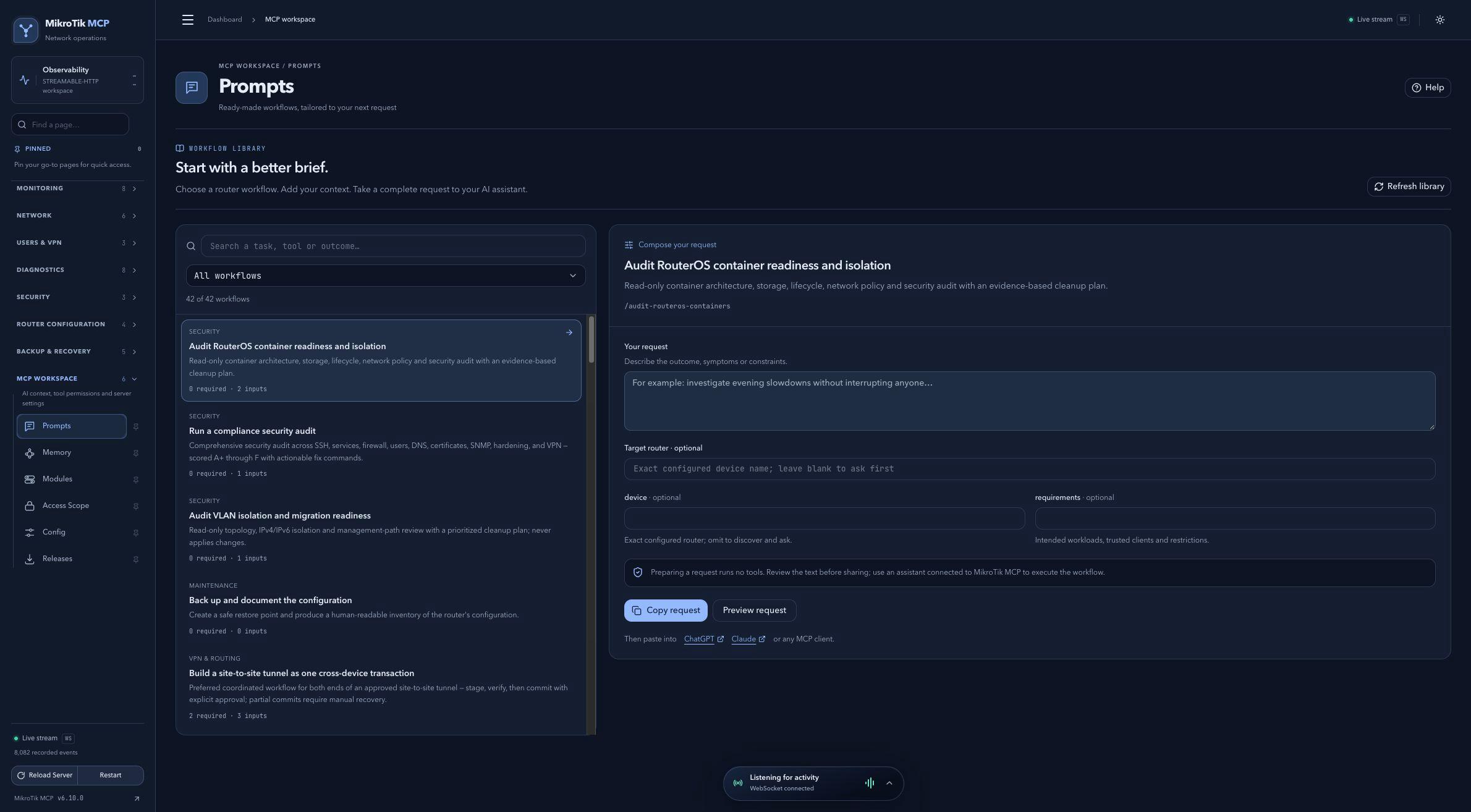 Full-page dashboard preview with IP addresses and snapshot/backup names blurredFull page · Click to enlarge ↗
IP addresses, snapshot/backup names and AAA/OpenVPN usernames are blurred in this full-page capture.