
Review available versions
Open MCP workspace → Releases (#releases). The header shows the running version and whether a newer release is available. Re-check refreshes that information.
Expand Notes on a version, or follow its GitHub link for the original release. The timeline distinguishes the running version, latest version and prereleases; the latest notes expand initially.
Install a selected version
Choose Upgrade to latest, a version's upgrade/reinstall action, or its downgrade action. The confirmation names the exact version and installation command:
bun i -g @usex/mikrotik-mcp@<version>This installation runs on the MCP host, not the browser computer or router. Review the result and install log. When the server reports that it is restarting, expect a brief connection interruption and reconnect afterward; otherwise follow the returned note.
Before downgrading, preserve your configuration and workspace data. An older release may not accept newer configuration.
If installation fails
A successful release-list request is not an installed update. Check the install log, host permissions and package access. If the request loses its connection, verify the running version before repeating it.
For containers or managed deployments, use their normal Docker or service deployment workflow rather than assuming a global install updates that deployment.
Screen preview
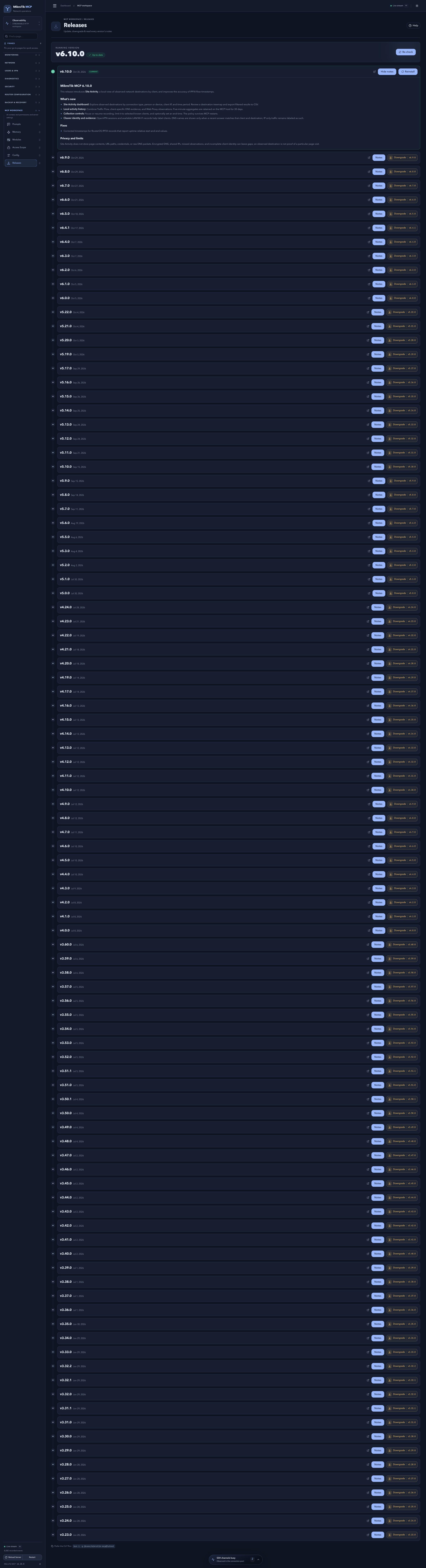 Full-page dashboard preview with IP addresses and snapshot/backup names blurredFull page · Click to enlarge ↗
IP addresses, snapshot/backup names and AAA/OpenVPN usernames are blurred in this full-page capture.