
Control the MCP tool catalog
Open MCP workspace → Modules (#modules). The counters show enabled modules and exposed tools relative to the complete catalog.
Search by name, slug, group or description. Toggle one module to expose or hide all its tools. Enable group / Disable group applies to the group's currently displayed modules. Enable all / Disable all applies to the whole catalog, even when a search is active.
The result states whether the change was saved to config or applied live (not saved). Do not assume an unsaved change survives a restart. Disabling updates tools.disabledModules; enabling removes that exclusion or adds the module to an active tools.enabledModules allow-list.
Refresh the client
Reconnect your MCP client, or restart the server, so its advertised tool list updates. Curate the tool surface around your tasks; discoverability varies by client and model, so there is no universal tool-count guarantee.
MCP App Views controls interactive read-tool widget metadata. That switch requires a server restart. It does not control whether the standalone dashboard is enabled.
Device availability
When capability results are available, the device selector shows reported unsupported modules and their reasons. An unprobed device is not proof of support. Enabling a module cannot install a missing RouterOS package or add hardware capabilities.
See configuration, capability detection and the complete tool catalog.
Screen preview
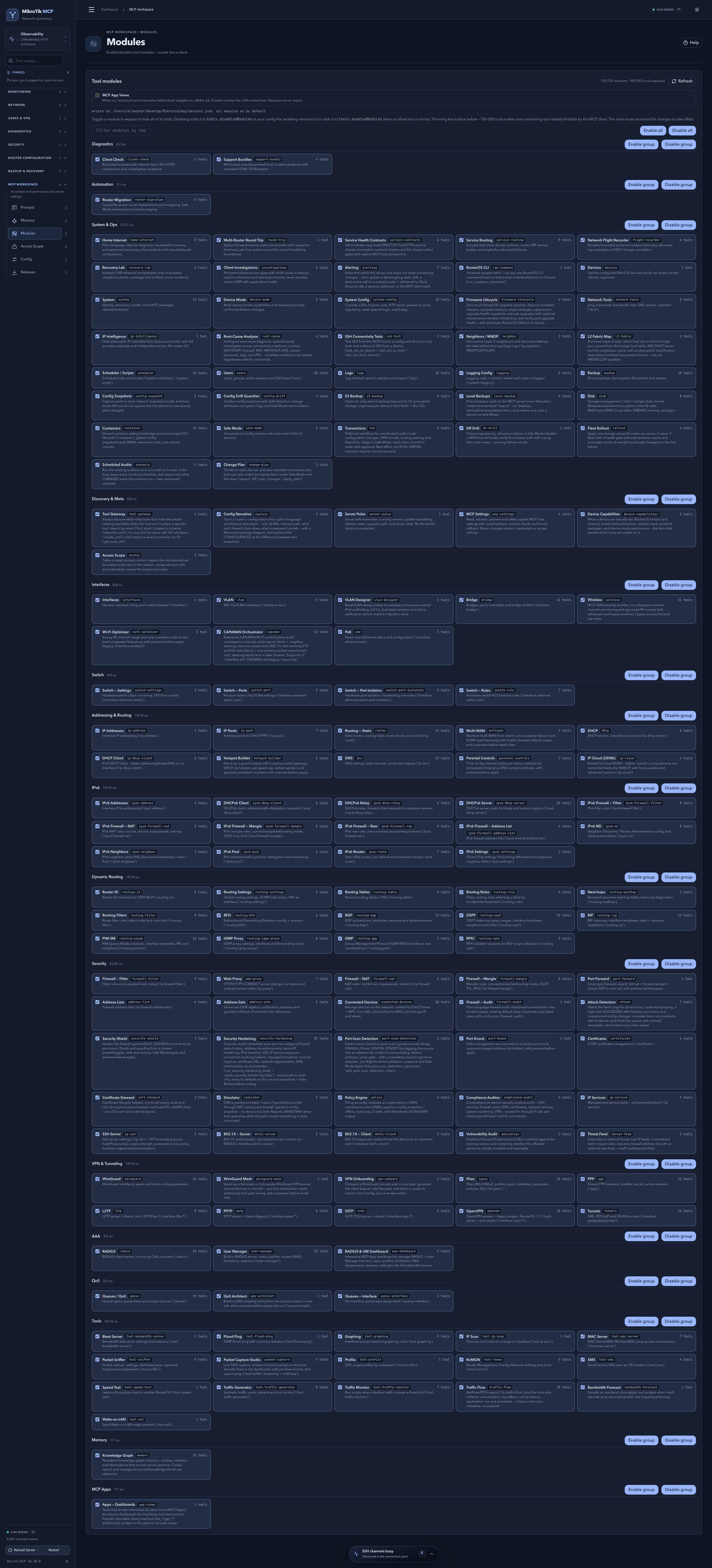 Full-page dashboard preview with IP addresses and snapshot/backup names blurredFull page · Click to enlarge ↗
IP addresses, snapshot/backup names and AAA/OpenVPN usernames are blurred in this full-page capture.