
Fleet overview
The radar and device directory show management reachability, last-check latency, identity and resource usage. Online management access does not prove that clients can reach the internet.
Search by name, address or hardware and filter by online, offline, unchecked or disabled state. Expand a card for connection capabilities and inspect the SSH pool to distinguish ready, busy and reconnecting channels.
Add or edit a connection
- Choose Add device or a card's Edit action.
- Complete Connection: device name, transport, management addresses and ports, optional jump host and MCP availability.
- Complete Authentication: RouterOS username and password or an SSH identity. Review the connection preview so the selected path and credentials belong to the intended router.
- Use Test connection and Review & test. A successful draft test does not save configuration.
- Choose Connect & Save, review pending device changes and keep the saved change within the displayed automatic-revert window.
The editor configures MCP access. Creating a draft or copying a device does not configure RouterOS interfaces, services or firewall rules.
Multiple management addresses
Add internal and external addresses to the same device. Select a primary address; the cards and router manager show the address count, full list and primary marker.
MCP tries recent successful endpoints first for five minutes, separately by transport and port. This improves reconnection without changing the saved primary. The UI distinguishes connected, failed, remembered and untested addresses; unused addresses are not continuously probed. A connection test is a current observation, not a guarantee that every fallback works.
SSH identity picker
Select an existing public key to use its companion private-key path. Create key generates a new RSA-3072 pair on the MCP host without overwriting files. Copy the public key for RouterOS import; private file contents are not sent to the browser. New keys are unencrypted for unattended use and remain on the host if the draft is cancelled.
Import only the public key for the intended RouterOS user and test it before relying on it. See SSH keys and authentication.
Manage the inventory
Manage routers offers form/JSON editing, default-router selection, enable/disable, duplicate/remove, reorder, batch testing and diff preview. Save the draft, then explicitly keep or revert it within the displayed timeout. Reconnect and Test address connection health; they do not fix client routing.
See multi-device configuration and transport behavior.
Screen preview
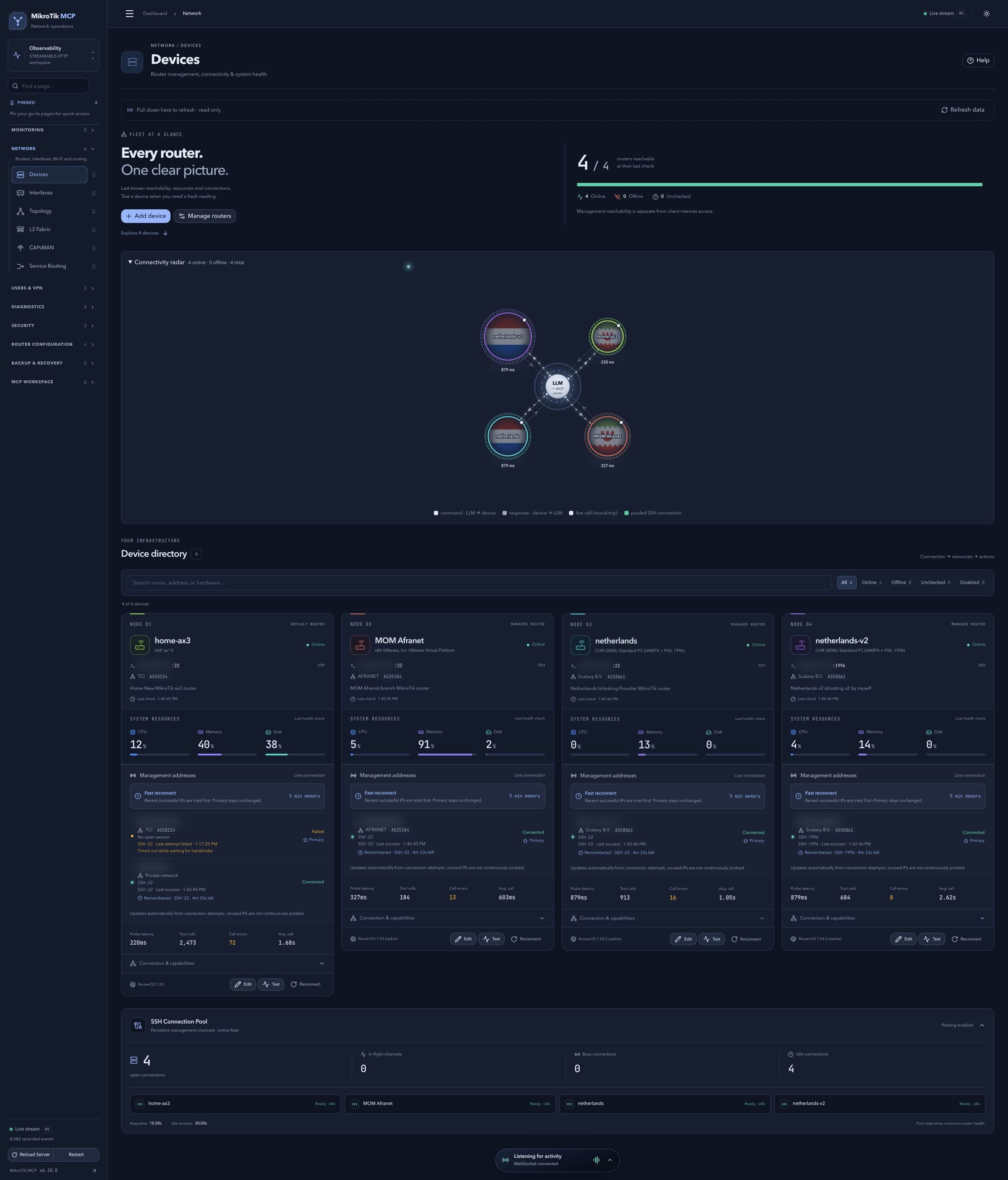 Full-page dashboard preview with IP addresses and snapshot/backup names blurredFull page · Click to enlarge ↗
IP addresses, snapshot/backup names and AAA/OpenVPN usernames are blurred in this full-page capture.
Additional screens
Connection setup
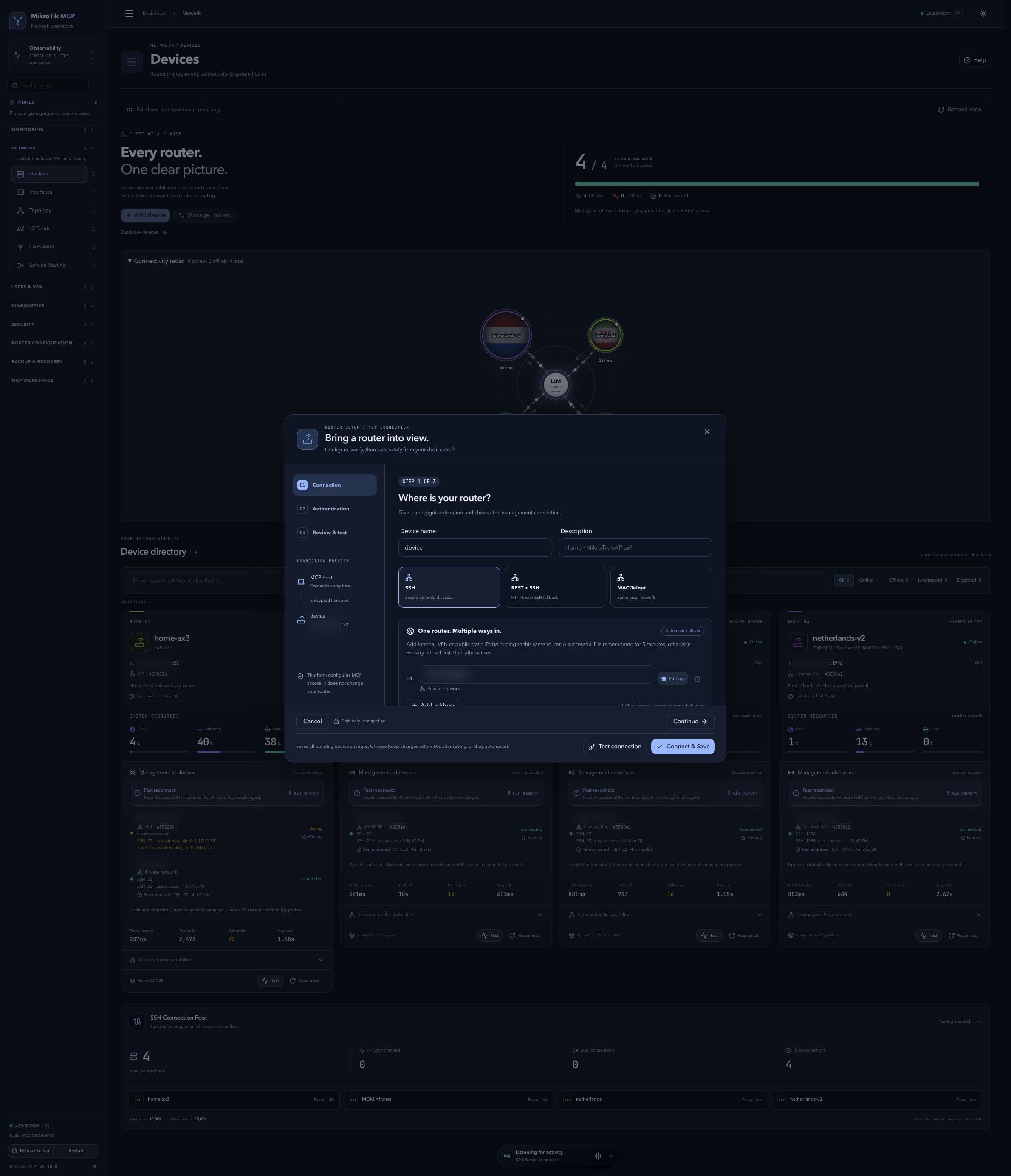 Connection setup; full-page capture with IPs and snapshot/backup names blurredFull page · Click to enlarge ↗
SSH identity selection
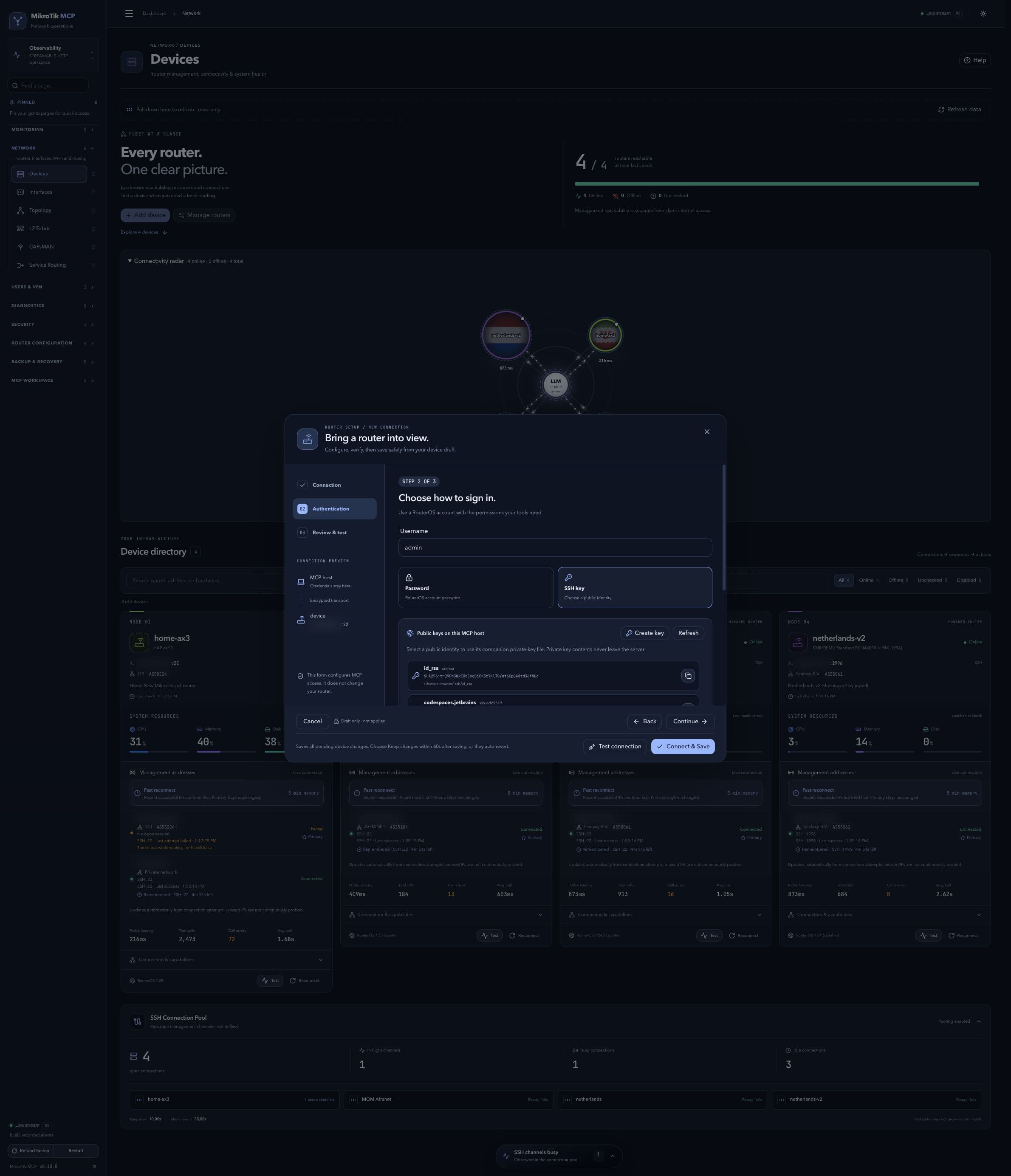 SSH identity selection; full-page capture with IPs and snapshot/backup names blurredFull page · Click to enlarge ↗
Create an SSH identity
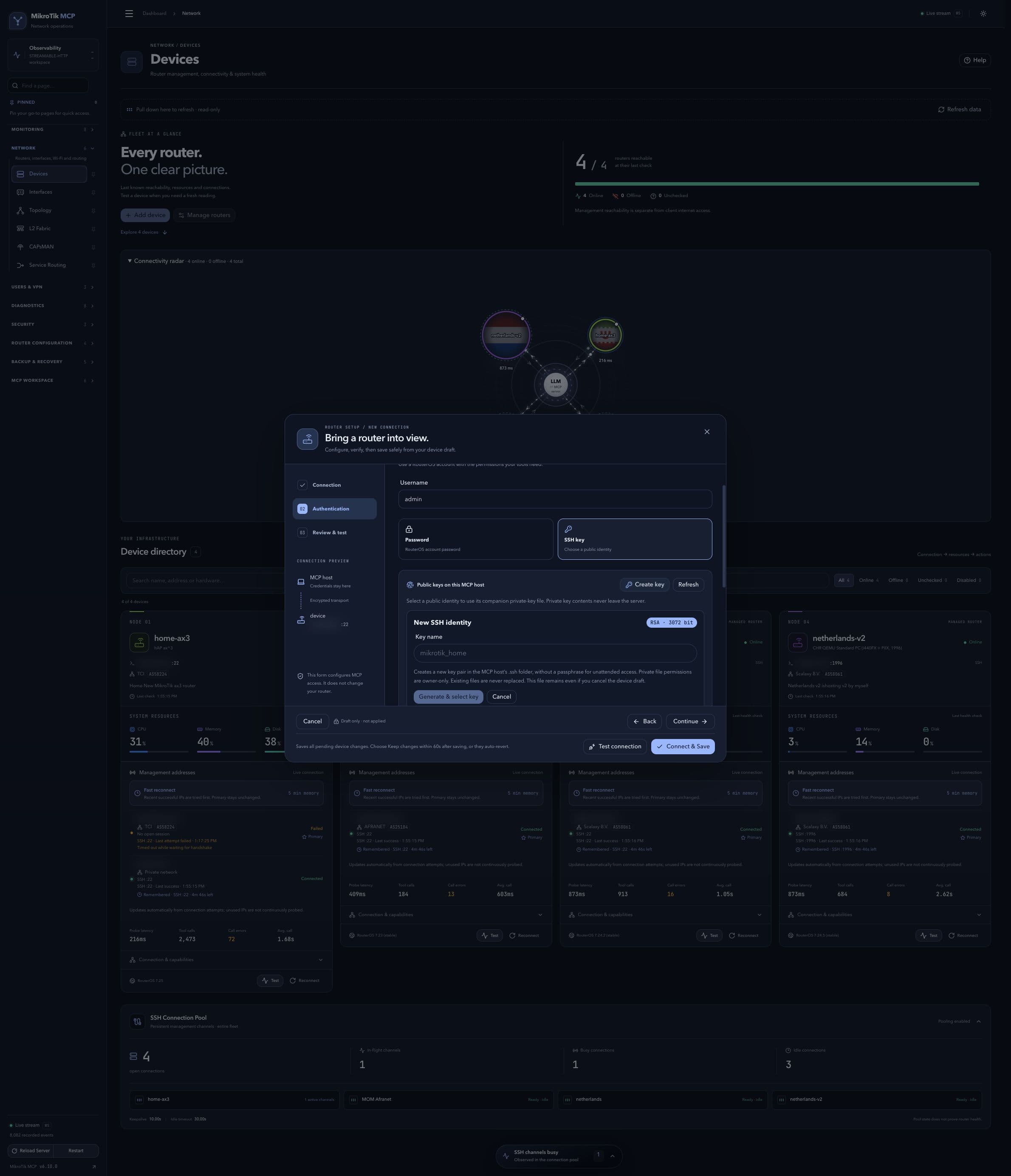 Create an SSH identity; full-page capture with IPs and snapshot/backup names blurredFull page · Click to enlarge ↗
Manage routers and primary addresses
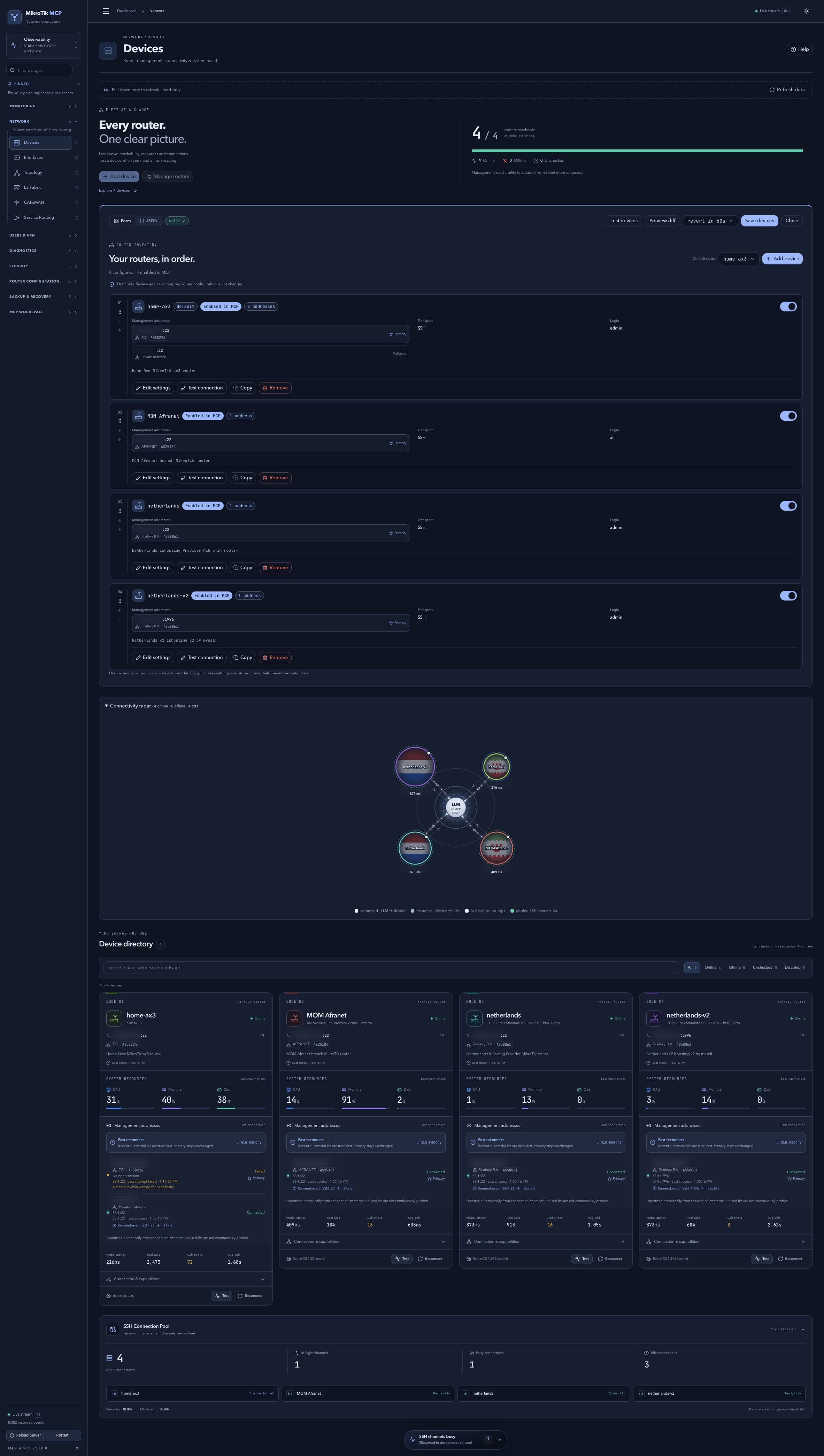 Manage routers and primary addresses; full-page capture with IPs and snapshot/backup names blurredFull page · Click to enlarge ↗