
Find a connected device
Open Users & VPN → Clients (#clients) and choose a router. The inventory combines DHCP leases and ARP records; search by IP, MAC, hostname or comment.
The list refreshes every 15 seconds. Select a row to inspect its traffic, router counters and recorded usage history for the last 90 days. Investigate this client and service opens an investigation with the router and client prefilled.
Read traffic and limits separately
Live per-client traffic uses IP Accounting on RouterOS v6 or Kid Control on v7. It does not require a Simple Queue merely to display those counters. The page identifies an unavailable traffic source rather than displaying zero.
Rate charts need two valid samples. Router counters can reset and are not billing totals. The displayed download/upload direction is from the client's perspective; these are not WAN or tunnel totals.
Client actions
| Action | Effect |
|---|---|
| Block / Allow | Changes the client's access control on the router. |
| Pin IP | Makes the current DHCP lease static. |
| Set IP | Opens an editor for a reserved address. Save applies it; Cancel leaves it unchanged. |
| Label | Opens the client-label editor. |
| Rate limits → Apply | Applies separate download/upload limits for the selected IP; use values such as 10M. Blank means unlimited. |
| Rate limits → Remove | Removes the configured limits for that IP. |
These actions change router configuration; filtering or opening a row does not. Check the returned status after each action. A traffic-source failure does not imply that a client is disconnected.
See network workspaces.
Screen preview
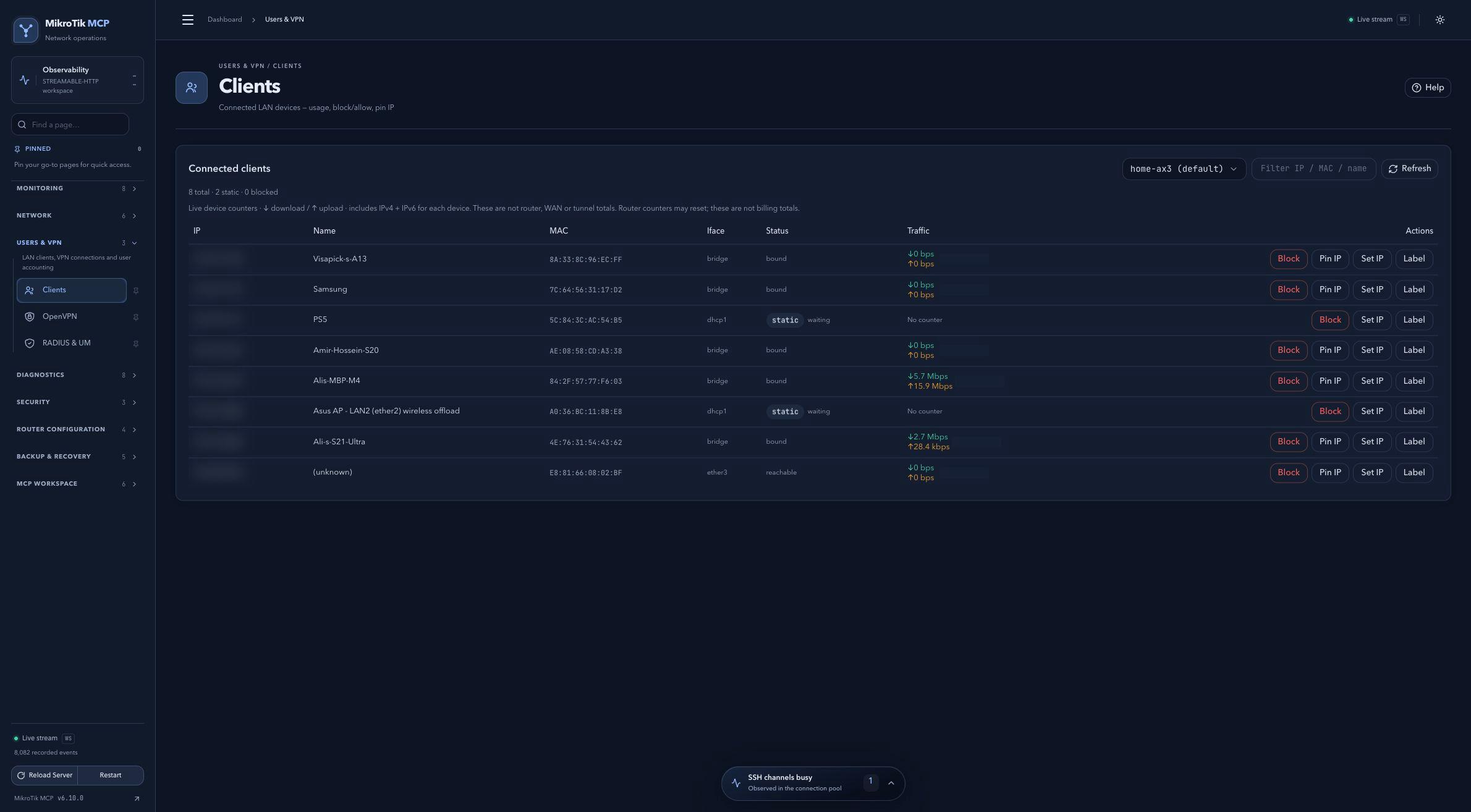 Full-page dashboard preview with IP addresses and snapshot/backup names blurredFull page · Click to enlarge ↗
IP addresses, snapshot/backup names and AAA/OpenVPN usernames are blurred in this full-page capture.